Bluetooth and Bluetooth means two wireless devices talking to each other without cables. Think of your phone and your headphones, your laptop and your speaker, or two phones sharing a photo. This guide explains how the link works, how to pair two devices at once, and how to fix it.
You already use this link every day, probably without thinking about it. First, this guide covers what the technology is and how pairing works. Next, it shows how to connect two devices at once and share files phone to phone. Finally, it answers the common questions about versions, range, battery, and safety.
Bluetooth and Bluetooth Pairing: How Two Devices Connect
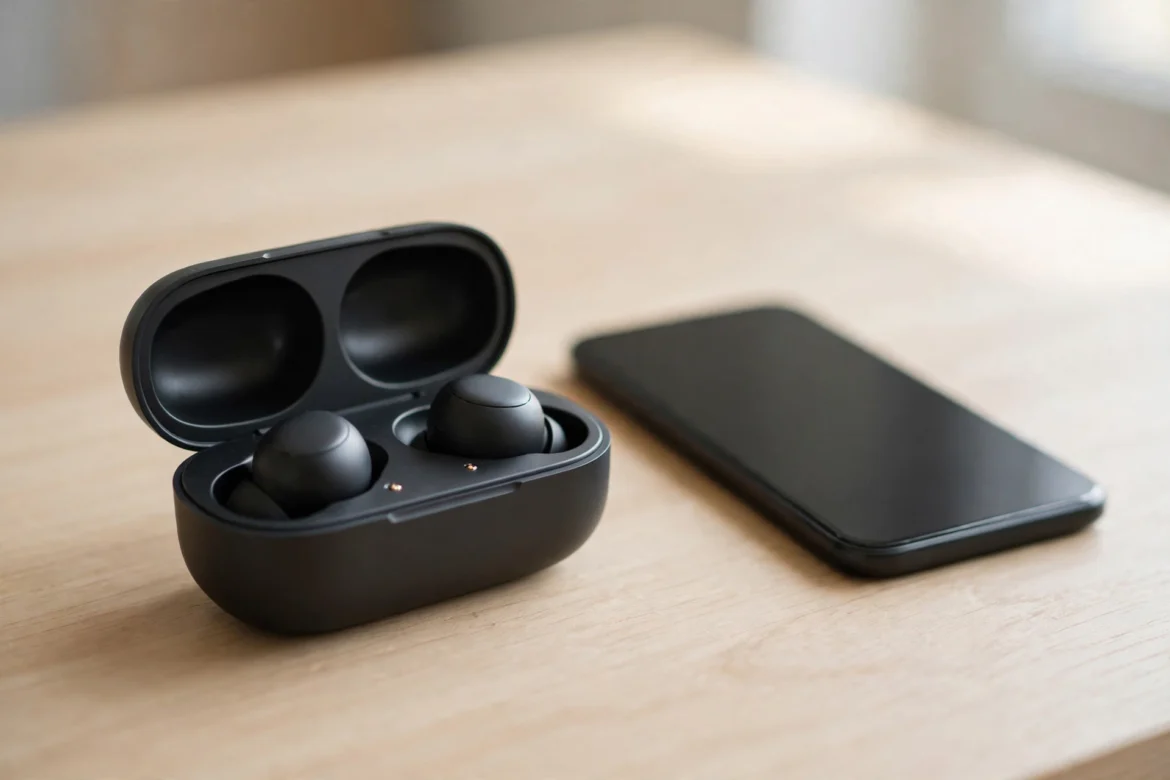
Bluetooth and Bluetooth pairing follows the same five steps on almost every device. First, switch the link on both devices. Next, put the accessory into pairing mode, usually with a long press on its button until a light flashes. Then, open the wireless settings on your phone, laptop, or tablet and pick the accessory from the list. After that, confirm the code on screen if one appears. Finally, the two devices remember each other, so they connect again on their own next time.
Pairing is not the same as connecting. Pairing is the first handshake, when two devices swap secret keys. Bonding is the memory of that handshake, stored on both sides. Connection is the live link that carries sound or data. For example, your earbuds pair once, then they connect in seconds every morning. If you remove the saved entry, the devices forget each other, and you must pair them again from the start.
Classic, Low Energy, and the Versions That Matter
Two families share the wireless standard, and the difference matters. For instance, Classic handles steady streams such as music and calls. Low Energy, or LE, sleeps between short bursts of data, so it suits trackers, watches, hearing aids, and smart-home sensors. Most modern phones and accessories support both families, and they switch between them without asking you.
Versions tell you how new the radio is, not how good the product is. Version 4.2 brought better security and smoother links. Then version 5 doubled the data speed of 4.2 and stretched the range, in ideal conditions, to around 240 metres. The 5.1 to 5.4 updates added LE Audio and faster connection starts. Version 6.0, released in 2024, measures distance more accurately, which helps smart locks and tracking tags. In fact, a higher version number alone does not guarantee better sound or a stronger link. The codec, the aerial, and the maker’s software matter just as much.
So which version do you actually need? Firstly, for everyday headphones and speakers, version 5 or newer is plenty. Secondly, a fitness tracker or a smart lock needs Low Energy support more than a version number. Hearing aids and shared public audio need LE Audio support instead of a version label. Overall, buy for the feature you need, not for the biggest number on the box.
Bluetooth and Bluetooth at the Same Time: Two Devices, One Phone
Bluetooth and Bluetooth at the same time is the trick most guides skip. Many modern earbuds can stay linked to two hosts at once: your phone and your laptop, for example. A call on your phone pauses the music from your laptop, then the music resumes when the call ends. However, the exact behaviour depends on the maker, so check the manual for the word multipoint before you buy.
One phone can also play to two sets of ears or two speakers at once. Some phones call this dual audio or audio sharing, and you switch it on in the sound settings. First, pair both accessories with the phone. Next, open the audio output menu and pick both of them. Then, start your music or video and check that sound reaches both. If only one plays, remove both pairings and pair them again one at a time.
Two devices can also fight over one host. If your earbuds keep joining the laptop when you want the phone, turn the link off on the laptop first. In addition, some accessories remember only one host, so they drop the first device when a second one connects. That is normal for cheaper models, not a fault.
Bluetooth and Bluetooth File Sharing: Phone to Phone
You can send a photo or a document from one phone to another without the internet. First, pair the two phones. Next, pick the file, choose share, and select the link as the method. Then, accept the transfer on the second phone and wait. The file arrives, but slowly.
Slow speed is the trade-off. The link moves only a few megabits per second, so a photo takes seconds and a short video takes minutes. As a result, this method suits one or two files, not a whole album. For large transfers, use Wi-Fi sharing or a cable instead: both move far more data in far less time.
Bluetooth in the Car: Hands-Free Without the Headache
The car is one of the best places for this technology. Pair your phone once, and the car plays your music and takes your calls through its speakers. First, start the car and open its wireless menu. Next, put your phone in pairing mode from its settings. Then, pick the car from the list and confirm the code. After that, the car should reconnect on its own each time you start it.
When the car forgets your phone, the fix is usually simple. Remove the car from your phone’s saved devices, then remove the phone from the car’s saved list. Next, pair them again from scratch. If the car still refuses, check for a software update on the phone and in the car system. In fact, most car pairing faults come from an old saved entry, not from a broken radio.
Bluetooth vs Wi-Fi: Which One Should You Use?
Both move data without cables, but they solve different problems. The wireless link here connects two devices directly, with no router and no internet. Wi-Fi connects devices to a network and to the internet, across a home or an office. For example, headphones, keyboards, and trackers belong on the short-range link. Streaming films, moving big files, and browsing belong on Wi-Fi.
Power is the other big difference. The short-range link sips power, which is why a tracker battery lasts for months. Wi-Fi uses far more energy to push far more data over a longer range. Meanwhile, speed follows the same pattern: Wi-Fi moves far more data, far faster. Choose the tool that fits the job.
When the Link Will Not Connect: Quick Fixes
Most failures have a short list of causes, so work through them in order. First, check that both devices are charged and close together. Next, make sure the accessory is in pairing mode and not already linked to another device nearby. Then, switch the link off and on again on the host, and restart both devices if the fault stays. Finally, remove the saved entry on both sides and pair again from scratch.
Pairs but no sound? Check the audio output on the phone or laptop, because sound often goes to the wrong device. Stuttering sound usually means distance, a wall, or a busy 2.4 GHz band, so move closer. One earbud silent? Put both earbuds in the case, charge them, then reset them with the maker’s steps and pair again. If the same fault appears with a second host, the accessory itself is likely at fault.
Should You Leave Bluetooth On? Battery and Safety in Plain English
Leaving the link on uses very little power on its own. Low Energy sensors sip power by sleeping between short bursts, while steady music streaming uses far more. In fact, the screen and the apps on your phone drain the battery far faster than the wireless link does. Overall, leave it on if you use it daily, and switch it off overnight on older devices.
Safety needs four simple habits. Pair only in places you trust, and never accept a pairing request you did not start. Keep your phone and your accessories updated, because updates fix known faults. Remove old pairings you no longer use. Likewise, turn pairing mode off as soon as setup finishes, so strangers nearby cannot see your device. These habits cover almost every everyday risk.
That is Bluetooth and Bluetooth in a nutshell: a short, direct link with no cables and no internet. Learn the five pairing steps, check multipoint before you buy earbuds, and keep the quick-fix list handy. Then the technology stays out of your way and simply works. To use your new setup online, our free website guide shows how to build a site without paying.
Frequently Asked Questions
Can Bluetooth and Bluetooth connect to each other?
Yes. That is exactly what pairing does: two wireless devices swap keys and form a direct link. Once paired, they reconnect on their own whenever both are switched on and in range.
Can I connect two Bluetooth speakers at the same time?
Yes, if your phone supports dual audio or audio sharing. Pair both speakers first, then pick both in the audio output menu. If your phone lacks that feature, only one speaker will play at a time.
Can I pair one pair of earbuds with two phones?
Yes, if the earbuds support multipoint. Check the manual or the box for that word before you buy. Without multipoint, the earbuds link to one phone at a time, and you must switch them over by hand.
Can I send files from one phone to another with Bluetooth?
Yes. Pair the two phones, pick the file, share it over the link, and accept it on the second phone. It suits single photos and documents, not large videos, because the transfer is slow.
Does Bluetooth need the internet to work?
No. The link is direct between two devices, so it works with no Wi-Fi, no mobile data, and no router. Your phone can still use Wi-Fi or mobile data separately while the link runs.