
Creating an engaging presentation often feels like an uphill battle. Traditional slide decks force you to align text boxes, resize images manually, and tweak designs for hours. The Sway computer program changes this dynamic entirely by offering a web-first approach to digital storytelling. Whether you need an interactive newsletter, a student project, or a slick business report, this tool takes care of the visual formatting so you can focus purely on your content.
In this guide, we will break down how this application works, explore its top features, examine real-world use cases, and compare it directly against alternative software options.
Understanding Microsoft Sway: The Modern Interactive Content Tool
The Sway computer program is a cloud-based digital storytelling app integrated into the Microsoft 365 ecosystem. Unlike legacy desktop software, it functions entirely in your web browser. You do not need to install complex desktop files or worry about save buttons, as all progress syncs automatically to the cloud.
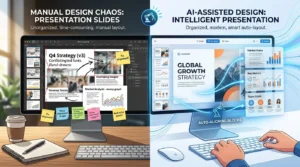
What truly makes this tool stand out is its automated design engine. Most people who create presentations are not professional graphic designers. When faced with a blank canvas, figuring out where to place images, headers, and body text can feel overwhelming. This application solves that problem by using a modular “Storyline” interface. You feed the application your raw text and visual media, and its design engine arranges everything into a clean, modern web layout.
Furthermore, every document created inside this tool is inherently web-responsive. If a colleague views your report on an ultra-wide desktop monitor, the layout expands gracefully. If a customer opens the exact same link on a smartphone, the content automatically adjusts into a fluid, vertical scrolling experience without breaking any formatting.
The 5 Best Real-World Use Cases for the Sway Computer Program
Because of its flexible canvas, the Sway computer program excels in scenarios where traditional static slides fall short. Here are five practical ways organizations and individuals use it today:
-
Interactive Company Newsletters & Internal Communications: Instead of sending bulky PDF email attachments that get ignored, internal communications teams send a lightweight web link. Employees can scroll through project updates, click through image stacks, and view embedded video updates directly on their phones.
-
Student Projects & Classroom Lesson Plans: Educators use this application to build self-paced learning modules complete with text, embedded quizzes, and instructional videos. Students love using it for research assignments because they can assemble impressive digital reports without mastering complex design software.
-
Digital Portfolios & Photo Stacks: Photographers, architects, and designers use the app’s interactive photo cards to showcase their work. Viewers can tap through photo piles, drag interactive comparison sliders, and view high-resolution image galleries effortlessly.
-
Online Business Reports & Case Studies: Share annual summaries, campaign debriefs, or client proposals as interactive web pages. You can group key data points, link out to external resources, and provide readers with an engaging narrative journey.
-
Event Invitations & Trip Itineraries: Planning a corporate retreat or a wedding? You can build an interactive event hub featuring embedded Google Maps, schedules, local highlights, and RSVP forms, giving guests a single destination for all event details.
How to Create a Presentation from Scratch in Minutes
Starting a new project inside the Sway computer program is straightforward. When you sign in at sway.office.com using your Microsoft account, you are presented with three clear starting paths:
-
Start from Scratch: You begin with a clean Storyline editor and manually add text cards, media cards, and group containers.
-
Start from a Topic: Type a subject into the search bar, such as “Renewable Energy.” The built-in topic generator curates structured outlines powered by online reference sources, providing key definitions, suggested headings, and relevant images to kickstart your work.
-
Import an Existing Document: If you already have a Word document, PDF, or PowerPoint deck, you can upload it directly into the app. The system deconstructs your document, pulls out titles, headers, and images, and transforms them into an interactive web narrative automatically.
Once your content is loaded into the Storyline editor, you can click the “Design” tab at any time to preview the final result. If you dislike the default look, simply click the “Remix!” button. The app will immediately cycle through completely different color palettes, typography pairs, and layout orientations until you find a style that fits your brand.

How to Embed Rich Media into Microsoft Sway
Static text and flat images can only hold a reader’s attention for so long. The Sway computer program shines when you leverage its multimedia capabilities to build dynamic, multi-layered documents.
Adding external media is simple. You can drag and drop media files directly onto your Storyline canvas or use the built-in search panel to find Creative Commons images, YouTube videos, and OneDrive files without leaving the application.
To embed interactive tools like Microsoft Forms or Google Maps, select the “Embed” card in your Storyline and paste the Iframe code provided by the source platform. This allows readers to fill out surveys, interact with live charts, or explore map locations right inside your presentation without navigating away.
Microsoft Sway vs. Top Competitors: Canva, Prezi, and PowerPoint
Choosing the right digital storytelling app depends on your specific goals, audience, and technical needs. The comparison table below highlights how the sway computer program stack up against other popular tools in the market:
| Feature / Criteria | Sway | Microsoft PowerPoint | Canva | Prezi |
| Primary Design Style | Continuous Web Canvas | Slide-by-Slide Deck | Graphic Canvas / Templates | Non-linear Zooming Canvas |
| Learning Curve | Extremely Low | Low to Moderate | Low to Moderate | Moderate |
| Automation | High (Auto Layout Engine) | Low (Manual Design) | Moderate (Drag & Drop) | Low |
| Web Responsiveness | Fully Automatic | Static / Fixed Aspect Ratio | Fixed / Limited Adjustments | Fixed Screen Ratio |
| Pricing | Free (M365 Integrated) | Paid / M365 Subscription | Free & Paid Tiers | Paid Subscription |
| Best Used For | Web reports & newsletters | Live presenter-led speeches | Marketing graphics & slides | Dynamic non-linear pitches |
While PowerPoint remains the king of live, speaker-led presentations packed with custom animations, the sway computer program is far superior for asynchronous reading where the user controls the scroll speed on their own device. Canva offers more visual customization, but Sway wins on automated convenience for users who want clean results in minimal time.
Essential Accessibility Features in Microsoft Sway
Inclusivity is a major focus for modern digital content, and the sway computer program includes robust accessibility tools out of the box.
The built-in Accessibility Checker scans your document for potential issues, such as missing alt text on images or poor color contrast. Authors can add descriptive alt text to every visual element, ensuring that visually impaired readers using screen readers can navigate the content effortlessly.
Additionally, viewers can toggle “Accessibility View” at any time. This mode strips away background animations, disables complex image stacks, and displays the content in a high-contrast, vertically scrolling format using easy-to-read fonts. This is particularly helpful for readers with dyslexia or visual impairments.
Exporting, Sharing, and Managing Permissions
Sharing a project created in the Sway computer program requires no file conversions or bulky attachments. You simply click the “Share” button at the top of the interface to generate a web link.
Sharing Permissions
-
Specific People or Groups: Restrict access to designated colleagues via email addresses.
-
People in Your Organization: Require users to sign in with an organizational account.
-
Anyone with a Link: Make the link publicly viewable across the web.
For added security, Microsoft 365 subscribers can password-protect their links or disable the viewer’s ability to copy and print the document. You can also view the “Viewers Count” metric in your dashboard to see how many people have opened your published document.
Exporting Options
If you need offline access or hard copies, you can export your project by navigating to Settings> Export. From there, you can convert your interactive document into a downloadable PDF or Word document. While static exports naturally lose interactive elements like video playback and photo stacks, the text structure and images remain cleanly formatted for offline printing.
FAQs
Is Microsoft Sway free to use for personal projects?
Yes, anyone with a free Microsoft account can access microsoft-sway online at sway.office.com without paying for a subscription.
Can multiple people edit a Sway presentation at the same time?
Yes, the application supports real-time co-authoring. You can share an edit link with teammates, allowing multiple users to work on the Storyline simultaneously without version control issues.
Is there a desktop application for the Sway computer program?
While the app was originally available in the Microsoft Store, it functions primarily as a web app today. You can access microsoft-sway from any modern desktop or mobile web browser without downloading software.
Is Microsoft Sway being discontinued?
No, the application remains an active part of the Microsoft 365 web app ecosystem, fully supported for educational, business, and personal accounts.